
Rack Analyst
Point your camera at your tiles, and get a complete strategic recommendation back in seconds — what to keep, what to discard, and how likely each realistic hand is to come together.
How to use it
Take Rack Photo
Lay your tiles out and tap Take Rack Photo. The camera reads every tile's suit and value, regardless of orientation.
Check the rack, fix anything misread
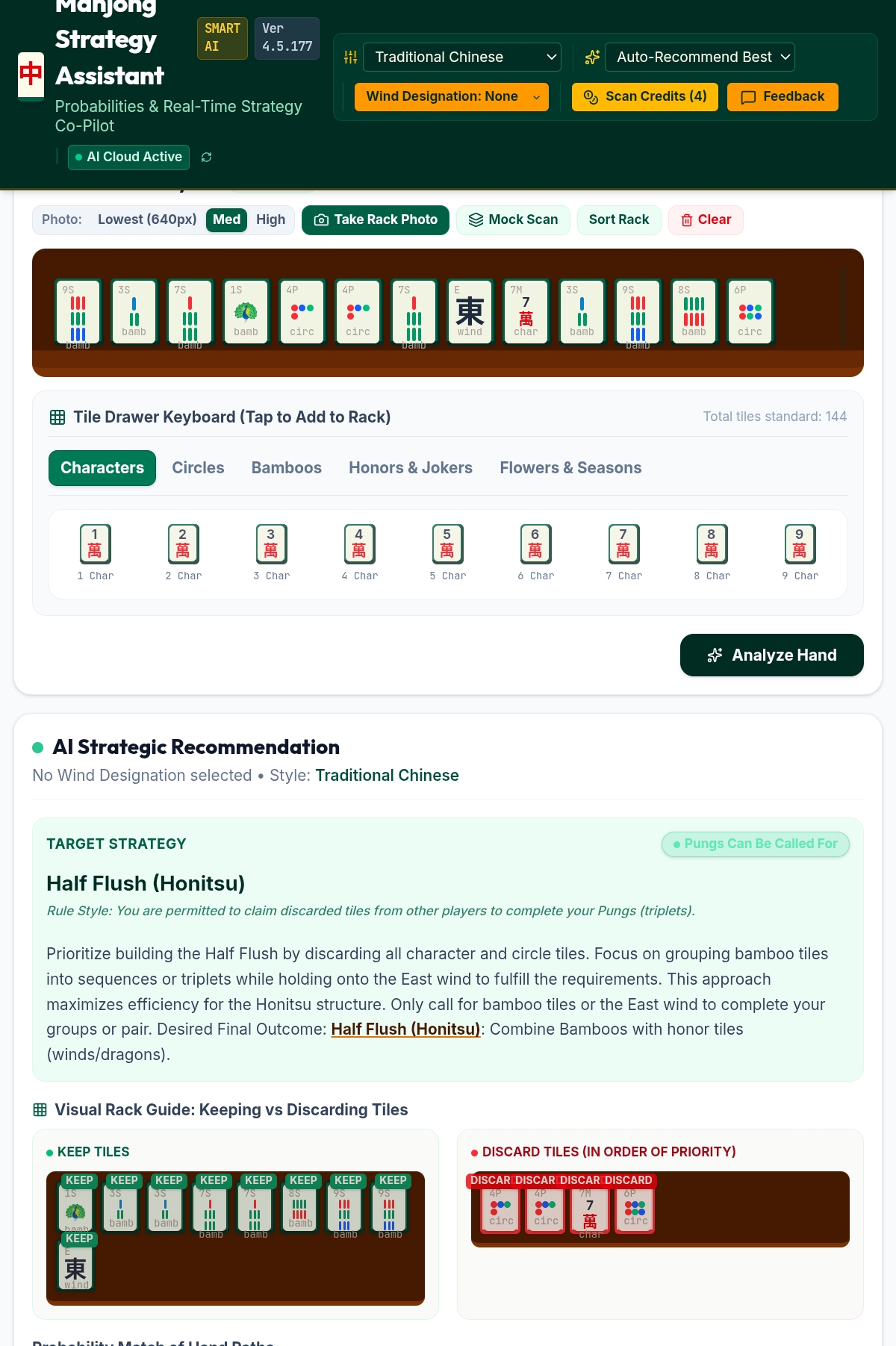
Your scanned rack appears as a row of tiles. If any tile was misread, tap it to correct it, or use the Tile Drawer Keyboard below to add tiles by hand — this never costs a scan credit.
Tap Analyze Hand
The app calculates every realistic hand your rack could complete, ranks them by likelihood, and works out the best keep/discard plan for the strongest one.
Read the Target Strategy card
This names the hand being recommended, explains the reasoning in plain language, and notes any special rule conditions (like whether pungs can be called from other players).
Follow the Visual Rack Guide
Tiles are laid out in two groups — green Keep tiles and red Discard tiles, in priority order. Discard the top one first.
Reading the probability list
Below the main recommendation, Probability Match of Hand Paths lists every other hand your rack has a realistic shot at, each with its own win percentage. If you'd rather chase one of the alternatives instead of the top pick, tap Target This Strategy on that entry — the whole keep/discard plan updates to match it.
Use Sort Rack after adding tiles by hand to lay everything out in suit order — it doesn't change your tiles, just how they're displayed.
On rulesets where wind affects scoring, a small Seat: … / Round: … badge appears near the top of this panel, confirming exactly what context is feeding the recommendation below. See the Riichi Setup Guide for how seat and round wind actually change the score.
Camera-based tile recognition is very accurate, but it isn't perfect — similar suits, tricky lighting, tile angle, or a physically worn tile can occasionally cause a misread. The app has no way to know the scan is wrong unless you tell it, so it will confidently analyze whatever rack it thinks it sees, even if that's not what's actually on your table.
Before tapping Analyze Hand, take a second to read through the scanned row and confirm every tile matches what's physically in front of you. If anything's off, tap that tile to correct it, or use the Tile Drawer Keyboard to add or fix tiles by hand — none of this costs a scan credit, only the original photo does.
Tap Clear to stop any recommendation in progress and reset the screen completely, including your rack.